Last updated: 30 October 2026
Quick answer: To record audio in Gemini Notebook, open the app on Android or iPhone and tap the microphone icon. It sits at the bottom of the home screen, between the camera and “Create New” buttons, or in a notebook’s Sources tab. Tap the checkmark to stop. Each recording can be up to 1 hour. Gemini uploads it, creates a transcript and saves it as a source you can summarise or ask questions about. The feature began rolling out on 27 October 2026, starting with users whose output language is English.
What is the Gemini Notebook audio recorder?
Gemini Notebook is Google’s AI research and note-taking app. You add “sources” such as documents, photos and notes, then chat with Gemini about them. The new recorder lets you capture a lecture, meeting or interview directly in the mobile app. Gemini turns the recording into a text source in your notebook. Google announced the feature in September 2026, and it began rolling out widely on Android and iOS on 27 October 2026.
How to record audio in Gemini Notebook: step by step
- Update and open the Gemini Notebook app on your Android phone or iPhone.
- Choose where the recording should go:
- To start a new notebook, tap the microphone icon on the home screen, between the camera and “Create New” buttons at the bottom.
- To add to an existing notebook, open it, go to the Sources tab and tap the microphone there.
- Start talking or let the room speak. You’ll see a waveform, a timer and a pause button.
- Switch apps or lock your phone if you need to. Recording continues in the background.
- Tap the checkmark when you’re done. The audio uploads and Gemini starts processing it.
- Wait for the transcript. Processing can take a few minutes for long recordings. The transcript is then saved as a source in your notebook.
- Use it: ask Gemini to summarise the recording, list the key takeaways or action items, or answer questions about specific topics, with citations back to the source.
Key limits and things to know
| Item | Details |
|---|---|
| Maximum length | 1 hour per recording |
| Platforms | Gemini Notebook app on Android and iOS |
| Language | Initially for users with English set as the output language (some reports say it is live worldwide) |
| Price | The app is free on the Play Store; no paid plan has been mentioned for the recorder |
| Original audio | Android Police reports the original audio is discarded after the transcript is made, so you can’t replay or share it |
Microphone icon missing? Try this
- Update the app from the Play Store or App Store.
- Force-stop and reopen the app (Android: Settings → Apps → Gemini Notebook → Force stop). Google rolls out features gradually.
- Check your output language. The first rollout targets English, so set it to English if you can.
- Give it a few days. Availability may vary while the rollout continues.
Tips for better results
- Keep the phone close to the speaker and away from fans or traffic noise to improve transcript accuracy.
- Split long sessions into recordings under an hour, such as one per lecture section.
- Add photos of your handwritten notes or slides to the same notebook. Google suggests combining them with audio for better answers.
- Check important details against the transcript. Because the original audio may not be kept, use a separate recorder (such as Pixel Recorder or your phone’s voice recorder) for interviews or meetings where you need the original file.
- Ask for permission before recording other people in meetings or classes. It’s good practice, and some workplaces and institutions require it.
What to do with your recording
Once the transcript is a source, try prompts like these:
- “Summarise this lecture in 10 bullet points.”
- “List every action item and who is responsible.”
- “What did the speaker say about exam dates?”
- “Make a quick revision quiz from this recording.”
Frequently asked questions
How long can I record in Gemini Notebook?
Each recording can be up to 1 hour long.
Where is the record button in Gemini Notebook?
Tap the microphone icon at the bottom of the home screen, between the camera and Create New buttons, or the microphone in a notebook’s Sources tab.
Does Gemini Notebook keep my audio recording?
Gemini creates a transcript and saves it as a source. Android Police reports that the original audio is discarded after transcription, so keep a separate recording if you need the audio file.
Is the Gemini Notebook recorder available in India?
It is rolling out on Android and iOS, starting with users whose output language is English. Indian users with English set should see it as the rollout reaches their account.
Can I record with the screen off?
Yes. Recording continues in the background if you lock your phone or switch to another app.
Sources
9to5Google (button location, interface, 1-hour limit), Android Police via Yahoo Tech (transcription, summaries, audio not kept), iGeeksBlog and Jetstream (rollout date and English-first availability), and Gadgets 360.
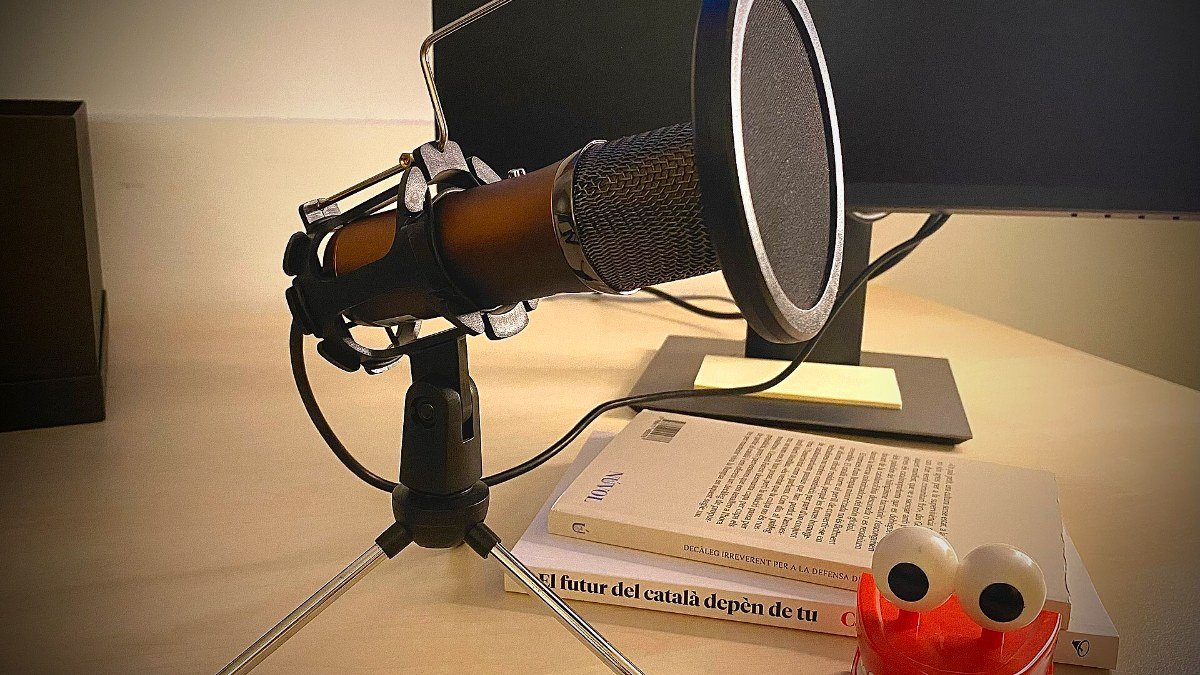
Featured image: GlobeTrendNews, using a photo by Xavier Dengra via Wikimedia Commons (CC0).